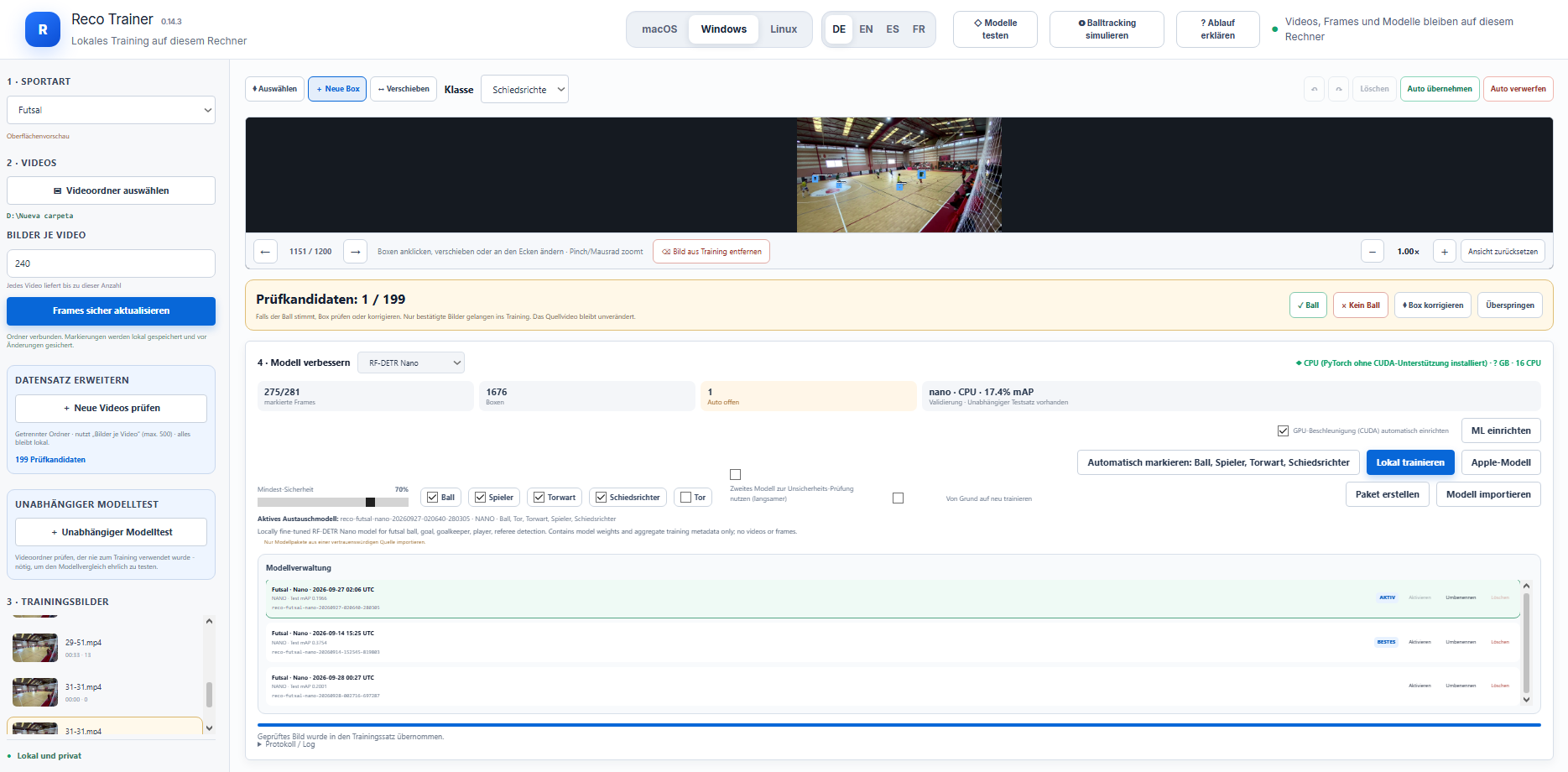
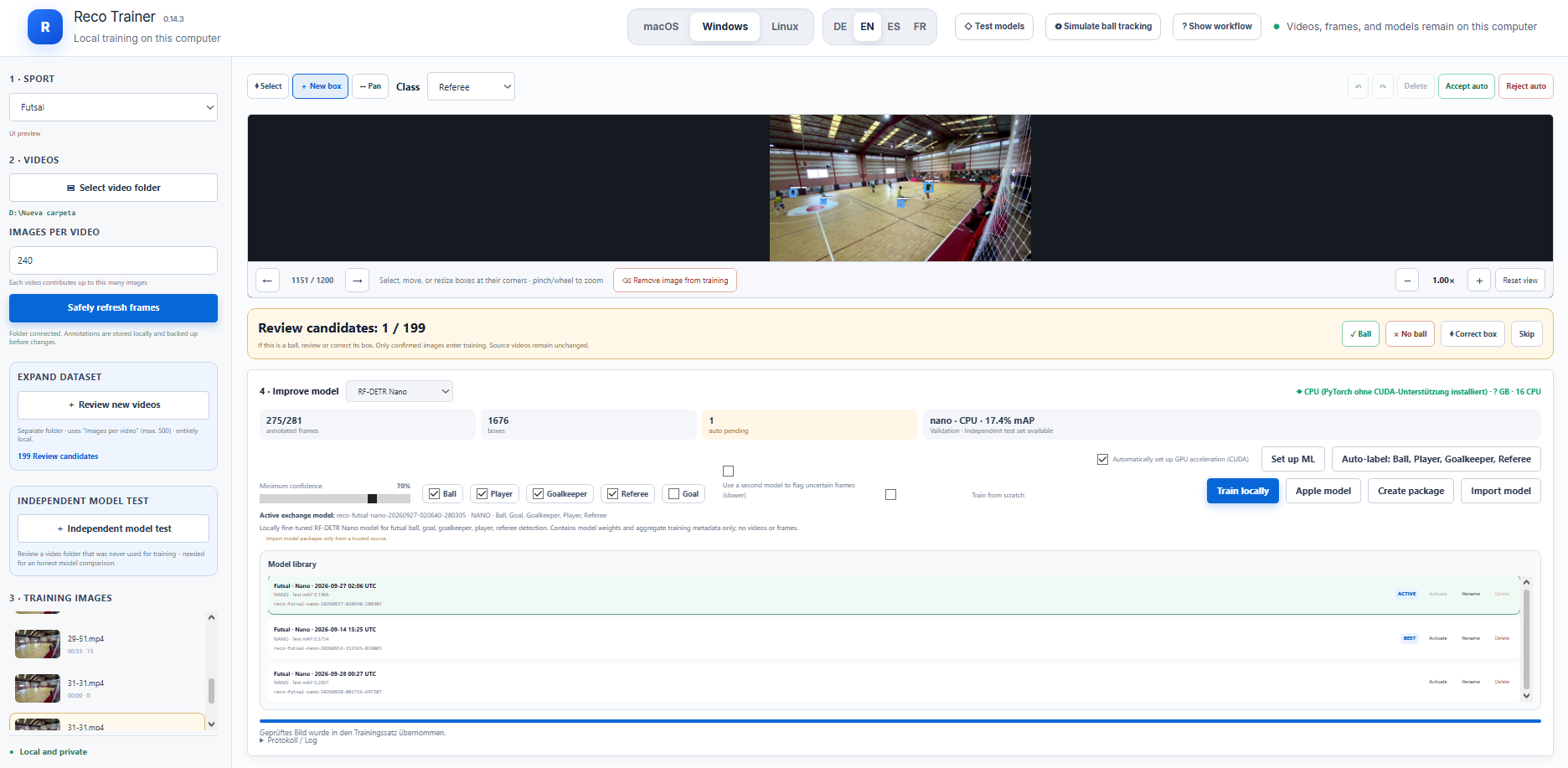
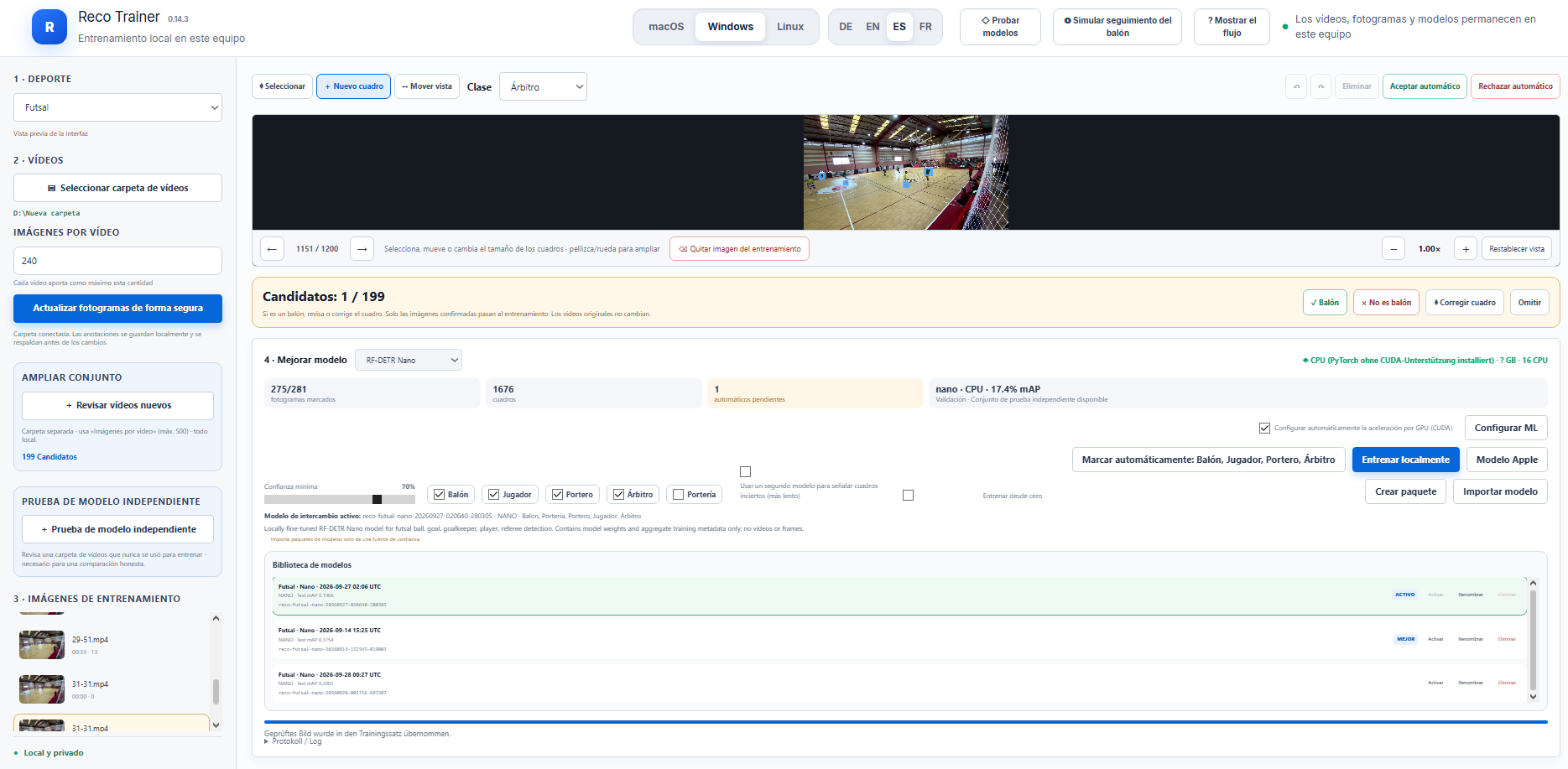
Yep, looks like it’s working, thanks!
All of my recordings come from gopros that split them into multi file videos. Reco trainer seems to have issues unless I load in the entire game into it. Im on windows and it takes a long time to cpu pocess all that. I have a NVIDIA GPU but I thinking its only using cpu based on how long it takes. Any tips on setting up the trainer to use my GPU?
Hi,
lately I had my focus on the comparison of ml models and how to build a cherry picking function if one performs better in one area and another one in a different one.
I thought to release it after testing it myself for another day. But I might have found a solution to your windows problems Tosh so I decided to release it now because it might be a good improvement for Windows Nvidia users.
Reco Trainer 0.13.0 — Ball-Tracking Simulation, Automatic GPU Setup
The biggest update yet. Videos, frames, labels, checkpoints, and metrics remain entirely on the local computer. This remains work-in-progress alpha software.
What’s new
Ball-tracking simulation
Pick a short clip and watch the currently active model’s ball detection played back frame by frame — a diagnostic view of how the model would actually perform in motion, not just on isolated still frames. Each frame shows one of four states:
- Detected (green) — a real detection landed on this frame.
- Interpolated (orange, dashed) — no detection here, but the tool found a real detection both before and after within the lookahead window, and blends between them.
- Held (yellow, dashed) — a real detection exists before this frame within the window, but nothing after it — the last known position is held.
- Lost — nothing within reach in either direction; no marker is shown.
The “how far to look into the future” control is a live slider: dragging it recomputes the whole track instantly from detections already fetched, with no new inference call per adjustment. The methodology mirrors an existing sports-camera tracking system’s approach (nearest-detection selection with a bounded hold), extended with real forward interpolation since — unlike a live camera — the whole clip is already available up front.
The clip is extracted to a throwaway location and processed once; it is never added to the project’s training data, never saved, never trained on.
Independent model test & combined models
(Previously shipped in 0.12.15, included here as part of this larger release.)
- Unabhängiger Modelltest / Independent model test: review a video folder that was never used for training and turn it — with app assistance across every category — into a genuinely independent test set. The model benchmark now requires this kind of held-out data for its reference instead of any reviewed training image, so a model can’t score well on the comparison simply because it already saw that footage during training.
- Combine models: bake a new combined model out of several installed models, each contributing only the categories it scored best on. Not real weight merging (not technically possible with RF-DETR’s architecture) — an ensemble at inference time, installed into the model library like any other model.
- The cross-platform web interface now also shows the per-category comparison table, matching what the Mac app has had since 0.12.9.
Windows: automatic GPU setup
“Set up ML” now detects an NVIDIA GPU on Windows and installs PyTorch with CUDA support automatically. Previously, a plain pip install there silently produced a CPU-only build — PyPI only hosts CUDA-enabled PyTorch wheels for Linux, not Windows — so every Windows installation defaulted to CPU-only training and inference regardless of the graphics card actually present, with no way for the app itself to notice or say so.
- A new switch (“Automatically set up GPU acceleration”) lets this be turned off if the CUDA install itself causes trouble (blocked network, unsupported driver) — falling back to the plain, always-working CPU install.
- The hardware indicator now correctly reports CUDA availability and the GPU name on Windows/Linux, instead of unconditionally showing “CPU” regardless of what’s actually being used.
- Preparing many videos at once (e.g. a GoPro recording split into several chapter files) now shows progress while reading each file’s metadata, instead of looking like it’s hanging before extraction even starts.
3 Likes
Reco Trainer 0.14.3 - A note on model file safety (please read before sharing/importing models)
To be crystal clear up front: this is not a “Reco Trainer has a security hole” post. Nobody found a bug in Reco Trainer. This is us proactively flagging a risk that exists anywhere you load an ML model from someone else - because an ounce of prevention beats a gallon of regret. Vaccinate the workflow now, skip the “how do I explain this to IT” conversation later.
Reco Trainer lets you export a trained model (.recomodel) to share with others, and import one someone else shares with you. Like any tool that loads ML model files, this comes with a real risk worth understanding.
The risk, simply put: model weight files (.pth/.ckpt) are built on Python’s “pickle” format. A pickle file isn’t just data — it can be crafted to run arbitrary code the moment it’s loaded. So a model file from an untrusted source could, in theory, be a trojan horse: it looks like a football/basketball/hockey detector, but loading it could run something else entirely on your computer.
This is not unique to Reco Trainer. It’s how PyTorch model files work in general, across the whole ML ecosystem. The rule that protects you is simple:
Only import model packages from people/sources you actually trust. Treat a
.recomodelfile the same way you’d treat an executable someone sent you.
What Reco Trainer now does about it (as of 0.14.3): every model file, on import and every time it’s actually used (training, auto-labeling, model comparison, export), is checked with PyTorch’s own safe-loading mode (weights_only=True). This mode only allows plain model data through — tensors and basic containers — and rejects anything that looks like it could execute code, before it ever reaches the normal loading path. A checksum is also verified, so a file can’t be silently corrupted or swapped either.
This meaningfully reduces the risk and blocks the well-known attack pattern for this file format. It is not a general antivirus and can’t catch everything conceivable — so the trust rule above still matters. Don’t import a .recomodel from someone/somewhere you wouldn’t trust with running code on your machine.
Update to 0.14.3 or later to get this protection: Reco Trainer 0.14.3
1 Like
Hi!
I have trained a model with 960 images that are labeled manually and then I run “train locally” but the result is not good enough, Am I doing something wrong?
Thank you
- List item
Hi,
thanks for your effort and sharing.
I have four Ideas:
-
How many Epochs did you try? If the best result was e.g. 20 and you have 20 as entry it might not be enough. If you choose e.g. 100 it takes longer but the results might be better. If there is no improvement it stops after a while. So lately it choose 100 but it usually stopped after 30-40 epochs.
-
it is very important that you have the bounding boxes accurate. In my first experiments (I started with only labelling balls because that is the most important step for a good record of the game) I have marked the ball and some of the surrounding. What you could try before the training is the OpenCV functionality. It checks the boxes a makes them smaller.
-
More is better but with 1.000 that is a solid base (I used 2.000 with the labelling automatic it is easier to label more.
-
You could play with the minimum security. If you lower it you will have mmore matches but the risk of wrong matches increases.
I would try the epochs first and if it does not improve the quality …
Good luck and please report your progress and learnings
Im using epoch 20 but I dont know how I can change it. My boxes are as accurate as I can, so I reckon that they are okey.
Hi,
could you please post a screen shot? I assumed that on every platform it should be possible to reduce / increase the epochs. I can only test it on Mac OS.